Free guide · ChatGPT Business Hub
How to claim your business on ChatGPT.
On 10 November 2026 OpenAI opened ChatGPT Business Hub, the first official way to manage what ChatGPT shows about your business. Here is every step to claim yours, in plain English, from creating the account to the blue check.
By Paul Saunders · Updated
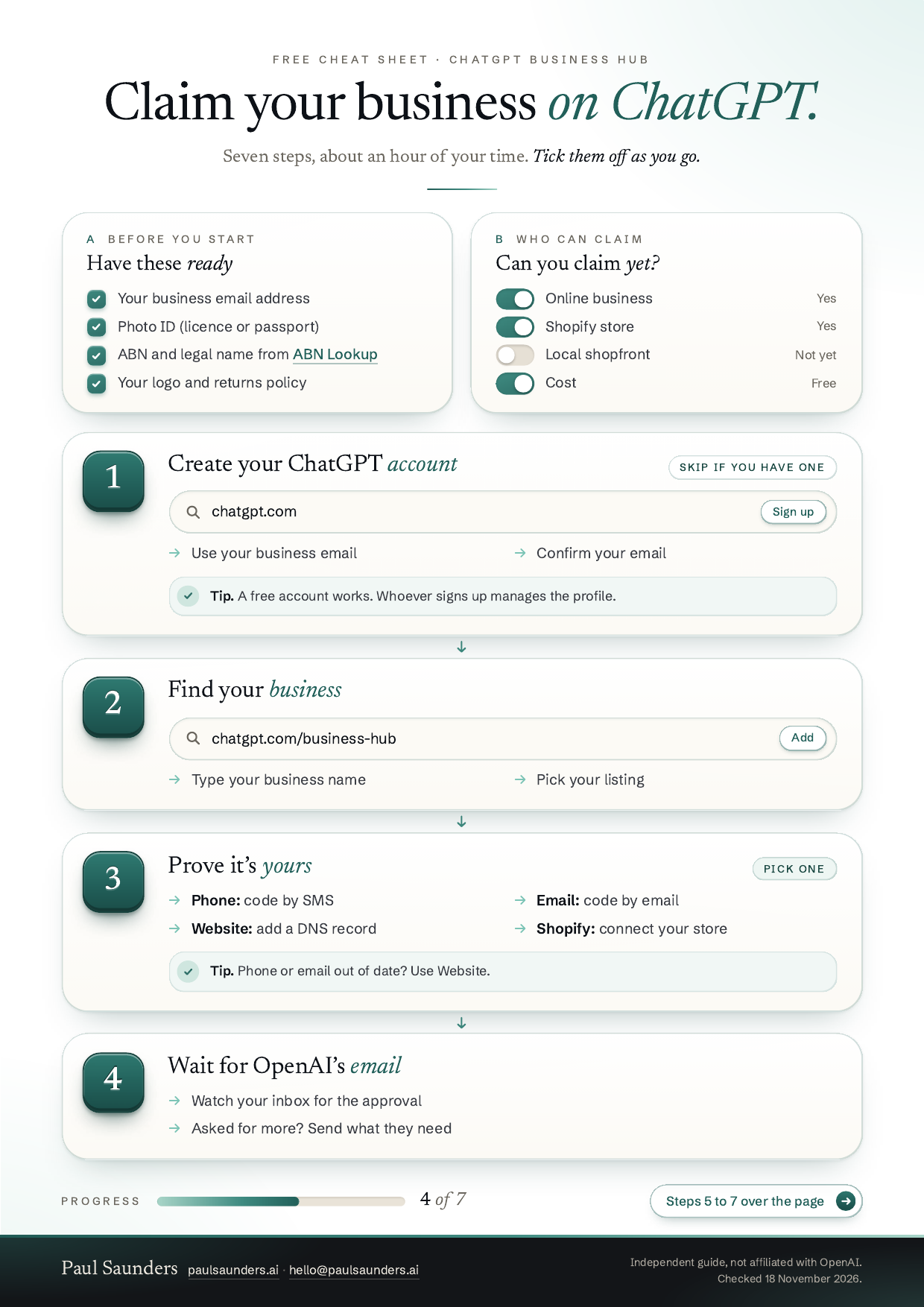
The seven steps, from account to blue check. Illustration, not OpenAI’s screens.
What is ChatGPT Business Hub?
ChatGPT Business Hub is OpenAI’s free dashboard for businesses, launched in beta as part of Businesses in ChatGPT. If you own a business or are authorised to represent one, you can claim its profile, keep its details accurate and see how people find it in ChatGPT. You’ll find it at chatgpt.com/business-hub.
It is not the same thing as ChatGPT Business, OpenAI’s paid workspace plan. You don’t need that plan, an Ads account or an Enterprise agreement to claim your business.
Your profile
Your website, a description of what you do, your product or service category, your logo, a cover photo, and your delivery and returns policies. Online stores can also connect a product feed with prices and stock.
Your insights
Mentions, website clicks and discovery topics over the past 28 days, straight from OpenAI. Until now the only way to estimate your ChatGPT visibility was with third-party tracking tools.
The blue check
A verified badge on your profile. It appears once OpenAI approves your identity check, not when you first claim.
Business agents (US only for now)
Eligible US online businesses can also publish a business agent that answers customer questions about products and policies. It isn’t available to Australian businesses yet.
Why claim it now
You set the facts
Your hours, policies and description come from you, not from an out-of-date directory listing.
Nobody else claims it first
If someone else claims your listing, you’re left disputing ownership instead of managing it.
You get the blue check
Pass the identity check and your profile shows OpenAI’s verified badge.
You see the numbers
OpenAI’s own counts of mentions and clicks show whether ChatGPT is sending you customers.
Business Hub opened on 10 November 2026. Claiming early puts your verified details in place from the start, before a competitor, an old listing or anyone else defines them. To be straight with you: OpenAI says claiming doesn’t guarantee more visibility. ChatGPT still decides what to recommend from your website, your reviews and what other sites say about you. Claiming makes sure that when it does mention you, the details are yours.
Can your business claim it yet?
Availability depends on where your business is and what type it is. As at 18 November 2026, for Australia:
| Business type | Can claim? |
|---|---|
| Online business with a website (ecommerce, online services) | Yes. Some claims join a waitlist first. |
| Shopify store | Yes, from Business Hub or the ChatGPT app in your Shopify admin. |
| Local shopfront (café, salon, trade, clinic) | Not yet. Only existing US local listings can be claimed. |
| Business agents and ChatGPT Ads | US only for now. |
OpenAI is changing this quickly, so search for your business in Business Hub to see what it offers you.
Before you start: what to have ready
- A ChatGPT account, ideally on an email address the business controls (a free account works)
- Access to the business phone, the business email, your domain’s DNS settings or your Shopify admin
- A government-issued photo ID for the person claiming
- Your ABN or ACN, your legal business name and your registered address, exactly as they appear on the ABN Lookup record
- Your website address, a short description of what you do, your logo, and your delivery and returns policies
Tip: look up your business on ABN Lookup first. The legal name and address you give OpenAI must match your official record exactly, or the identity check can fail.
Step 1 · 5 minutes
Create or sign in to a ChatGPT account
Business Hub lives inside ChatGPT, so you need a ChatGPT account. A free account works: you don’t need a paid plan.
If you don’t have an account yet
- Go to chatgpt.com and select Sign up.
- Enter an email address, or continue with Google, Microsoft or Apple.
- Follow the prompts to confirm your email address and add your name.
Which email to use
Use an address the business controls, such as one on your own domain, rather than a personal address. The account that claims the business is the one that manages it, and it is awkward to move later. You can add teammates or an agency once you’re approved, each with their own account.
If you already use ChatGPT
Sign in with the account you want to manage the business from. If you use ChatGPT at work through an Enterprise workspace, your listing may need the workspace’s designated administrator to start the claim.
Step 2 · 2 minutes
Open Business Hub and find your business
- Signed in, go to chatgpt.com/business-hub. You’ll see a page headed Business.
- Select Add, then type your business name into Search business.
- Pick the listing that matches your business and confirm the ChatGPT account you’ll manage it from. By continuing you accept OpenAI’s Businesses in ChatGPT Terms, so give them a read.
If your business isn’t listed
Eligible online businesses may see an option to add it. Local shopfronts can currently claim only an existing US listing.
If you see Contact support
Your listing is locked. Select Contact support to ask OpenAI for access.
Step 3 · 5 to 15 minutes
Verify your claim
Prove the business is yours with one of the methods OpenAI offers on your listing. Which ones you see depends on the listing.
Business phone
Choose a text message (SMS) or an automated call, select Get code and enter the code sent to the number shown on the listing.
Best when the listing shows a number you answer.
Business email
Select Get code and enter the code sent to the email address associated with your business.
Best when you can open the inbox on your website’s domain.
Website domain
Add the TXT record ChatGPT shows to your domain’s DNS settings, copying the type, name or host, and value exactly. Then return and select Verify domain.
Best when the phone or email on the listing is out of date. Your web developer or domain host can add the record for you.
Shopify store
Select Connect Shopify, review the permissions, log in to the Shopify store for the business and follow the prompts.
Best for Shopify stores. You can also start from the ChatGPT app in your Shopify admin.
Can’t receive a code at the phone or email shown? Check the other methods on the listing. Website domain lets you verify without changing your public phone number. DNS changes can take a while to show, so if Verify domain fails, wait and try again.
Step 4 · Varies
Wait for OpenAI’s review
OpenAI reviews your claim and emails you its decision, or a request for more information. Review times vary. While it’s under review you can select Cancel claim if you need to start again.
Lost track of a claim? Sign in with the same ChatGPT account, open Business Hub, and open the existing profile.
Step 5 · 10 minutes
Verify your identity with Persona
Approval of your claim proves your link to the business. OpenAI then checks who you are through Persona, an identity verification service. Until Persona approves you, you can’t publish changes, view insights or connect a product feed, and you won’t get the blue check.
- In Business Hub, open your profile and find Complete verification with Persona in the overview.
- Select Verify, then Continue to Persona.
- Follow Persona’s prompts. Expect to provide a government-issued ID, your business registration details and proof that you’re authorised to represent the business.
Get the names right
Enter your legal business name from your registration, not your trading name. For example, a café trading as Bayside Coffee but registered as Bayside Foods Pty Ltd enters Bayside Foods Pty Ltd in the legal-name field, and Bayside Coffee in the trading-name field if there is one. Your ABN or ACN and registered address must match your records too.
If you created a brand-new profile through Persona, OpenAI’s approval publishes it automatically. Only continue once every detail is right, because a published profile can’t be deleted.
Step 6 · 20 minutes
Complete your profile
Once your claim and Persona are both approved, open your profile under Business and fill in:
- Your website address
- A clear description in the words your customers use
- Your product or service category
- Your logo and a cover photo
- Your delivery and returns policies, matching your website word for word
OpenAI reviews and publishes each change, so updates can take time to show. Keep the details identical to your website, Google Business Profile and directory listings.
Online stores: connect a product feed
Share prices and stock through Shopify, a CSV file or a hosted feed URL that follows OpenAI’s product feed specification. Connecting a feed doesn’t guarantee ChatGPT recommends your products.
Let OpenAI’s search crawler in
Check your robots.txt and any firewall or CDN settings allow OAI-SearchBot, OpenAI’s search crawler. Ask your web developer if you’re not sure.
Step 7 · Monthly
Check your insights
Open your business in Business Hub and select Insights. Everything covers the past 28 days.
- Mentions: for an online business, how often ChatGPT referenced your website. Being named without a link doesn’t count, so treat it as a minimum.
- Website clicks: how often people clicked through to your site. Expect a gap against your own analytics.
- Discovery topics: the themes in answers that mentioned you. They aren’t the actual questions people typed.
A blank metric doesn’t mean zero. It can mean activity is below OpenAI’s reporting threshold or the data is still coming in. Put a reminder in your diary to check once a month.
If something goes wrong
Someone else has claimed your business
Open the profile, select the more options menu (•••), then Dispute ownership, and verify with Persona that you’re authorised to represent the business.
Your identity check failed or expired
Follow the instructions in OpenAI’s email. If Try again is available, check the business name, address and ABN against your ABN Lookup record before you resubmit.
You made a mistake before publishing
An unpublished draft can be deleted: open it, check the name and website, then choose Delete draft from the three-dot menu on the Overview.
You’re still stuck
Contact OpenAI Support from the help article with the step you were on, any error message and a screenshot with personal details removed.
Local shopfront? Here’s what to do while you wait
When OpenAI opens local listings to Australia, the businesses with their details in order will be ready on day one. Do these now:
- 1Check monthly whether Business Hub finds your business: search at chatgpt.com/business-hub.
- 2Make your name, address, phone and hours identical on your website, Google Business Profile and directories.
- 3Collect reviews on the platforms your customers already use.
- 4Ask ChatGPT what it knows about your business and fix any page it cites that’s wrong.
- 5Add “How did you hear about us?” to your enquiry form, with ChatGPT as an option.
- 6Get the cheat sheet below so you have every step ready when it opens.
Free cheat sheet
Seven steps, easy to follow.
A two-page PDF to keep beside you while you claim: seven numbered steps, the four ways to verify, what to have ready for the identity check, and a clickable link for every page you need.
Questions owners ask
Is ChatGPT Business Hub free?
Yes. Claiming your business is free. You don’t need a paid ChatGPT plan, an Ads account or a ChatGPT Enterprise agreement. A free ChatGPT account can open Business Hub.
Can Australian businesses claim a profile?
Online businesses with a website can claim, edit their profile and see insights now, though some claims go onto a waitlist first. Local shopfronts such as cafés, salons and trades can currently claim only an existing US listing, so most Australian shopfronts need to wait.
Will claiming make ChatGPT recommend my business more?
Not on its own. OpenAI says claiming doesn’t guarantee more visibility and that ChatGPT still draws on other sources. What claiming gives you is control of the details ChatGPT shows, the blue check once you pass Persona, and OpenAI’s own numbers on mentions and clicks.
What is the blue check?
The verified badge on your profile. It appears only after your Persona identity verification is approved, not when your claim is approved.
What if someone else has already claimed my business?
Open the profile, select the more options menu (•••), then Dispute ownership, and follow the prompts to verify with Persona that you’re authorised to represent the business.
Can my web developer or agency do this for me?
They can help, for example by adding the DNS record. The claim and the Persona ID check need someone authorised to represent the business. Once you’re approved, the admin who claimed it can add teammates or grant an agency access, each with their own ChatGPT account, so nobody shares a login.
Can I delete my profile if I make a mistake?
Only an unpublished draft can be deleted. OpenAI Support can’t delete, unpublish or hide a published profile, so check every detail before you submit. If you create a new profile through Persona, approval publishes it automatically.
How long does it take?
The hands-on part takes about an hour across a few sittings. OpenAI reviews the claim and then the Persona check, and emails a decision for each. Review times vary.
Keep reading
From the blog
ChatGPT Business Hub, explained for Australian business owners
What OpenAI launched on 10 November 2026, what it changes for Australian businesses and what it does not.
Read the post →
Rather hand it over?
Stuck on a step? Let’s talk it through.
Book a call, tell me where you’re up to, and we’ll work out the quickest way through.
Book a callSources
- OpenAI Help Center: Setting up your business on ChatGPT
- ChatGPT Business Hub
- OpenAI: Overview of OpenAI crawlers (OAI-SearchBot)
- ABN Lookup (check your legal name and registered details)
Checked against OpenAI’s help article and Business Hub itself on 18 November 2026. Business Hub is in beta and changes often. If a screen looks different, the help article has the latest wording. ChatGPT is a trademark of OpenAI. This guide is independent and not affiliated with OpenAI.

Paul Saunders
AI Solutions Architect
Book a call
Let’s see what’s possible for your business
If you’ve got systems, knowledge or processes that could be working harder, let’s talk. No obligation, just a straightforward conversation about where AI could genuinely help.
Prefer email? hello@paulsaunders.ai